Instead of checking transit dates manually every day, add verified birth-chart transit times to Apple Calendar and attach alerts so your phone reminds you when to review them. Apple Calendar schedules the reminders; a separate astrology source must calculate the transits.
- Apple Calendar astrology transit alerts require calculated transit dates; Calendar does not calculate your birth chart.
- Manual events are best for a small, editable set of personal transits.
- Subscribed calendars update from a provider, but birth-chart personalization and notification behavior require checking.
- Jahben astrology readings suit people seeking personal interpretation, not a calendar integration.
Why this matters
A calendar connection is not a birth-chart calculation. A general calendar of full moons or planetary sign changes describes shared sky events. A personal transit compares a moving planet with a position in your natal chart.
For example, a calendar entry saying that Jupiter enters a sign is not the same as an entry marking Jupiter's exact conjunction with your natal Moon. The second requires your natal placements and a transit calculation.
Use this workflow to organize reflection, not to treat an astrological date as a guaranteed outcome. Astrology is an interpretive practice, not a scientifically established method for predicting personal events. For the planning layer, see how to use astrology to plan your month.
Before you start
- Birth details and transit results: Gather your birth date, recorded birth time, and birthplace, plus a calculated list of personal transits. If your birth time is unknown, avoid relying on precise Ascendant or house-based alerts.
- Calendar access: Have an iPhone with Apple Calendar and permission to create events. Enable Calendar syncing in iCloud if you want those events on your other Apple devices. The subscription variant below uses Calendar on a Mac.
- The gotcha: A downloaded
.icsfile is usually a snapshot, not a live connection. A subscribed calendar follows its publisher's feed, but it still needs to contain personal transits rather than general astrology dates.
Keep your birth details out of shared calendar names and event titles. A private-looking title does not make a shared calendar private; check who has access before adding personal notes.
Choose your calendar workflow
Start with manual events unless you already have a personalized calendar export or subscription. You can verify each entry and control its reminders without depending on a provider's feed.
| Workflow | Best for | Advantage | Limitation |
|---|---|---|---|
| Manual events | A short list of selected personal transits | You control titles, notes, timing, and alerts | You must enter and correct dates yourself |
Imported .ics file |
A prepared batch of transit events | Adds multiple events without individual entry | The imported copy does not automatically follow source changes |
| Subscribed calendar | A provider-maintained transit feed | Receives changes through subscription refreshes | Requires a suitable feed; editing and alert controls differ from ordinary events |
A birth-chart image, PDF interpretation, or written reading is not itself a calendar feed. If your source provides only a report, use its verified dates to create manual entries.
Jahben provides personal astrology guidance. This workflow does not require or describe a Jahben calendar export, subscription, or automated connection.
Prepare your transit list
- Confirm the chart. Check the birth date, birth time, and birthplace in your astrology source. Confirm whether an uncertain birth time affects the placements you plan to track.
- Choose a limited scope. Select the transits you actually want to review. Start with a few meaningful natal contacts rather than every available aspect.
- Record the calculation details. For each entry, save the moving planet, aspect, natal planet or angle, exact date and time, and the source's time zone. Keep the source name with the record.
- Check the date range. For a 2026 calendar, confirm that the report covers the part of 2026 you want to schedule. Do not assume an annual report includes every exact transit.
- Separate exact contacts from interpretation windows. An exact aspect is a calculated instant; the broader period an astrologer discusses is an interpretive window. Label them differently.
Expected result: You have a source-backed transit list with unambiguous timestamps, not just sign descriptions or a general horoscope.
Retrograde motion can produce repeated exact contacts between the same planets. Keep each calculated contact as a separate dated entry. Do not turn a planetary transit into an annually repeating calendar event; its next occurrence requires another calculation.
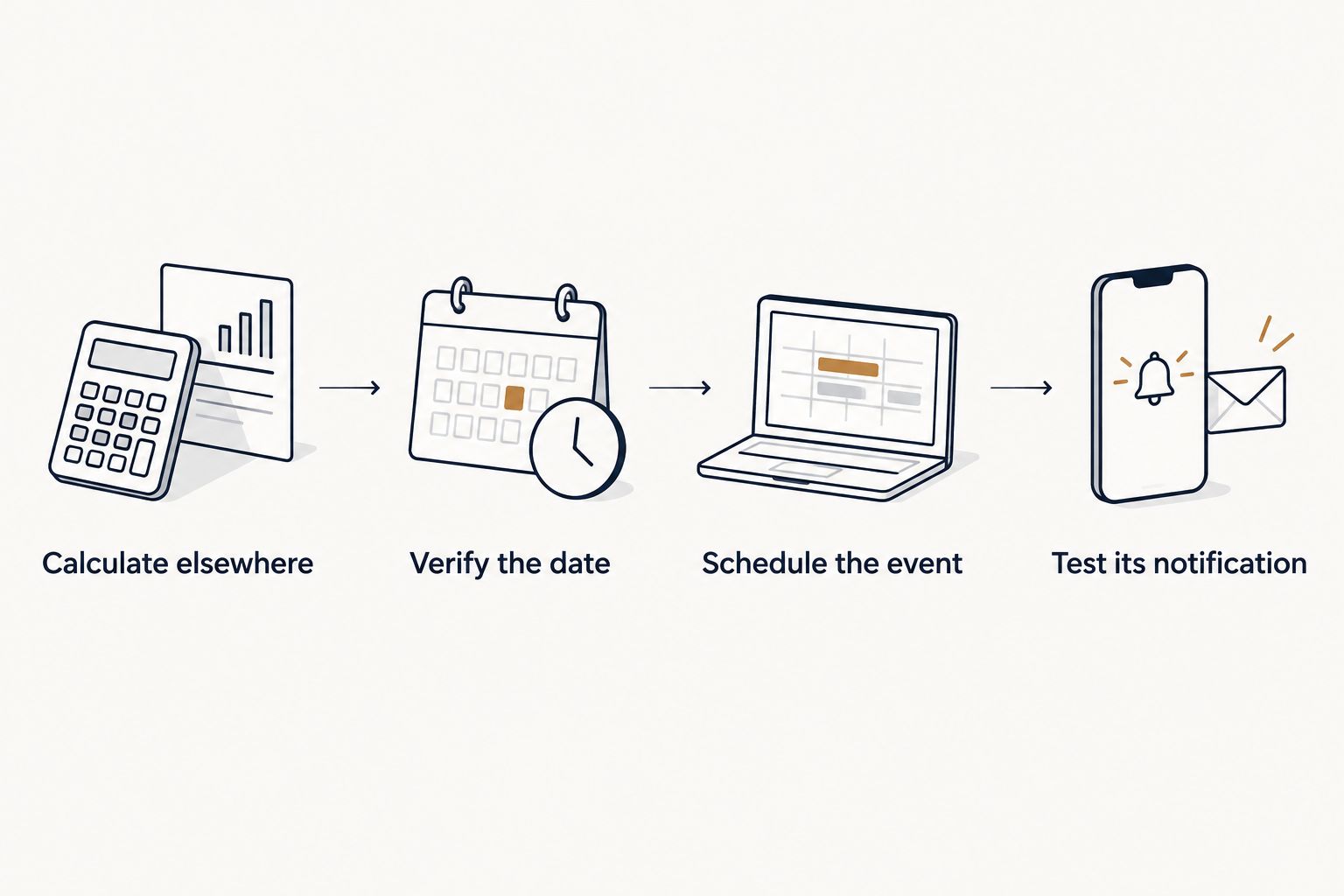
The workflow is simple: calculate elsewhere, verify the date, schedule the event, then test its notification.
Create your transit calendar and events
These instructions use the English-language iPhone Calendar interface. Subscription setup appears separately because it uses a different connection method.
- Open Calendar and tap Calendars. Tap Add Calendar, then choose Add Calendar to create a regular calendar.
- Name it something recognizable, such as Personal Transits 2026. Choose your iCloud account when you want the calendar to sync across devices, then tap Done.
- Tap + to create an event. In Title, enter the moving planet, aspect, and natal placement. A format such as Jupiter conjunct natal Moon distinguishes a personal transit from a general sky event.
- Tap Calendar and select your transit calendar. Check this selection before saving; otherwise, the event can land in your work or shared family calendar.
- Leave All-day off for an exact timestamp. Set Starts to the verified transit time and choose an Ends time. A 15-minute event is a useful display choice, not a claim about how long the transit lasts.
- In Notes, record the source, original time zone, calculation settings you need to preserve, and a short reflection question. Tap Add to save.
Expected result: The event appears on the correct date in your separate transit calendar, with the source information available when you open it.
Check the time before copying more events
Open the saved event and compare its displayed time with your source. If your astrology report uses UTC, convert that timestamp to the event's intended time zone before entering it, or explicitly select the source time zone in the event's date controls.
Do not apply one fixed UTC offset to an entire year. Daylight-saving changes affect local offsets. Test a date on each side of a clock change if your list spans those periods.
For a 2026 planning calendar, also confirm the year on every imported or manually entered date. A correct month and day in the wrong year still produces a useless reminder.
Configure alerts and verify delivery
- Open your saved transit event and tap Edit. Tap Alert and choose when you want the reminder.
- For a planning prompt, select 1 day before. For an exact-time reminder, select At time of event. These are different purposes; choose the one that matches how you use the calendar.
- If Second Alert appears, use it only when you need both advance preparation and an exact-time prompt. Tap Done to save your changes.
- Open Settings, then Notifications, then Calendar. Turn on Allow Notifications and check the delivery options you want, including sounds if you need an audible reminder.
- Create a separate test event 30 minutes ahead with At time of event selected. Lock your phone and confirm that the notification arrives.
Expected result: A test notification reaches your iPhone, and the real transit event shows your chosen alert setting.
Do not assume successful iCloud syncing proves notifications work. Syncing places an event on a device; notification permissions, Focus settings, and alert configuration determine how that device presents it.
Keep event notes practical. Instead of writing that a transit guarantees a promotion or reconciliation, record a question such as: What conversation deserves more preparation? Calendar reminders should support your judgment, not replace it.
Receive updates through a calendar subscription
Best for: an existing personalized transit feed that its publisher maintains. Use this variant only when your astrology source supplies an actual calendar subscription address. A normal webpage address or chart image will not work.
- On your Mac, open Calendar. Choose File > New Calendar Subscription.
- Paste the subscription address supplied by your provider, then click Subscribe. Treat a personalized feed address as private, especially if it contains an access token.
- Give the subscription a recognizable name. In Location, choose iCloud if you want the subscription accessible through your iCloud-connected devices.
- Set Auto-refresh to an interval offered by Calendar that suits your needs. Refresh checks for feed changes; it does not calculate new transits itself.
- Review the subscription's alert-removal settings before saving. Then inspect a future event to see whether an alert is actually present, and test notification delivery on the device you use.
Expected result: The subscription appears as its own calendar, and its listed events match the provider's feed. An entry without a working alert is a calendar listing, not a proven notification workflow.
For a 2026 subscription, check the latest event date in the feed. A subscription can refresh successfully while its publisher supplies only a limited date range.
Subscribed events are generally read-only in Calendar. If you need editable notes or custom alerts, create a separate personal event for selected transits and clearly distinguish it from the subscribed version.
Troubleshooting
The event appears, but no alert arrives
Open the event and confirm that Alert is not set to None. Check Calendar notification permissions and whether your active Focus silences Calendar. Repeat the test with a new future event rather than waiting for another transit.
The transit appears at the wrong time
Compare the original timestamp, source time zone, and event time zone. Check whether you entered a UTC time as local time or used an incorrect daylight-saving offset. Correct the timestamp before changing the alert.
Every transit appears twice
Check whether you imported the same file twice or kept both an import and a subscription visible. Hide one calendar temporarily to identify the duplicate source. Delete redundant entries only after confirming which calendar you want to keep.
The subscription will not update or open
Confirm that the address is a calendar feed rather than a webpage. Check with the publisher whether access has changed, then inspect Auto-refresh on the Mac. Repeatedly importing a replacement file creates copies; it does not repair a subscription.
The dates are general, not personal
Inspect the event descriptions. Moon phases, sign ingresses, and retrograde stations alone do not demonstrate natal-chart personalization. Return to your chart source and obtain transits that explicitly reference your natal placements.
Customize your workflow
Keep calculation, interpretation, and action separate. Apple Calendar handles scheduling. Your astrology source supplies the dates; you decide what deserves attention.
Use a consistent note structure: source timestamp, transit description, reflection question, and a later observation. Review what actually happened without rewriting earlier expectations to fit the outcome.
Jahben astrology readings are best for people seeking personal interpretation rather than automated transit calculation. Personal guidance adds discussion and context; it does not replace a tested calendar feed or guarantee an event's outcome.
Before expanding your calendar, review the distinction between your natal placements in the related guides below. Birth-time uncertainty matters especially when scheduling contacts to the Ascendant or other chart angles.
FAQ
Can Apple Calendar calculate transits from my birth chart?
No. Apple Calendar stores events and delivers configured reminders; you need an astrology source to calculate personal transit dates before entering, importing, or subscribing to them.
What's the simplest way to set up Apple Calendar astrology transit alerts?
Create a separate calendar, add verified personal transit timestamps, and attach an alert to each event. Test a near-future event before relying on the setup.
Does an ICS file keep my transit calendar updated?
An imported ICS file does not create a live connection to its source. A calendar subscription follows a feed and checks for changes according to its refresh settings.
Can I get personal transit alerts without my birth time?
You can schedule transits to placements your astrology source can establish without an exact birth time. Avoid precise Ascendant and house-based alerts, and verify uncertainty in the Moon's position.
Will a subscribed astrology calendar notify me on my iPhone?
Do not assume that subscription alone enables notifications. Check whether the subscribed events contain usable alerts and test delivery on your iPhone.
Should I make a transit repeat every year?
No. A personal planetary transit is not generally an annually repeating event; calculate and schedule each occurrence separately.
Does Jahben connect birth charts directly to Apple Calendar?
This guide describes a calendar workflow, not a Jahben integration. Use separately calculated transit dates or a provider-supplied calendar feed for the scheduling connection.
One last thing
The exact transit time and the useful reflection time do not have to match. Preserve the calculated timestamp in the event, but schedule a separate review when you can give it attention. An overnight notification is not more insightful because it interrupts your sleep.
Related guides
- How to calculate your Big Three: Sun, Moon, and rising sign
- How to find your rising sign without a birth time
Ready for your own reading?
Astrology, numerology, and tarot brought together into one clear, written answer about your love, career, or timing.
Book a Personal Reading Get Your Free Report